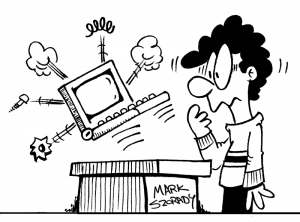
Here you have...a Windows infected computer.

Here you have…a Windows infected computer.

“Here You Have…” a Windows Virus

It happened again.  Last week, a rather vicious virus called “Here You Have” ran rampant on the internet and infected systems in top companies like ABC/Disney, ComCast, and Proctor and Gamble.

The virus spread through email.  Once launched, it infected the user’s system, grabbed his/her email address book, and started spamming away while disabling security software.

The virus was disguised as a PDF. It appeared as a file/attachment from a friend.  Once clicked by the the user, an executable file (.exe) would launch.

Twitter filled up with messages from folks who were already infected.  “Good Morning America’s” weatherman tweeted that his email account was being filled up by a huge email-spam virus.

When news of the virus broke, I immediately started looking for more information.   I came across the Yahoo News article which stated,

“As you may have guessed, the URL doesn’t actually take you to a PDF, but instead to an executable with the extension .scr. While the domain linked to in these infected e-mails is no longer live, infected computers can still be spreading virus messages. When the virus is run, it installs itself as CSRSS.EXE in the Windows directory, then e-mails the contents of your address book. It also spreads through mapped drives, remote machines, and removable media. The virus then attempts to download files and delete security software, including virus protection.”

Did you notice that one line?   ” When the virus is run, it installs itself as CSRSS.EXE in the Windows directory,…”

Windows. Once again, people running Windows were the target.  And it appears that anti-virus software, that all Windows users are strongly urged to have (and routinely update), either didn’t work or wasn’t enabled.

This is the main reason why I switched to Linux about six years ago.  I was tired of constantly looking over my shoulder for the next big threat to hit my Windows system.

Since switching, I have piece of mind.  I have a safe, secure, and stable computer system. I no longer worry about Windows viruses because Linux is immune to them.

With Linux, I run cutting edge software and a lightening fast desktop (thanks to not having anti-virus applications constantly hogging resources).  And if I have a question or problem, help from a wonderful community of users is only a keystroke away .

Get the Windows target off your back.  Get Linux.

└ Tags: , ,

Share
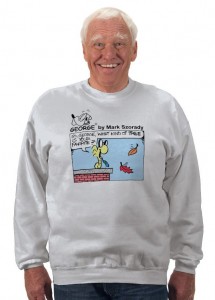
Dad leaf raking sweatshirt front

Dad leaf raking sweatshirt – front view

It’s time to break out the blowers and rakes and clear away Mother Nature’s colorful leaf blanket.   It’s wonderful to look at the changing colors of the season.  And as the leaves begin to fall, dad will be busy in the yard.

So, when it’s time to do some leaf raking, let dad do it in style!  Give dad the official  George Leaf Raking Sweatshirt!

This sweatshirt features a terrifically funny George comic strip dealing with the autumn chore of leaf raking.  Panel one is on the front of the sweatshirt.  The payoff gag panel (panel two) is on the back in full color just like the colorful leaves dad will be raking.

So give dad the George Leaf Raking Sweatshirt. A gift this nice might even get you out of a little bit of leaf raking yourself.


Share

I love to tweak and customize my computer’s desktop. I love to add widgets, gadgets, shortcuts, and informational apps. I’ll add just about anything that will allow my system to be as unique and distinct as possible and still allow me to get my work done.

This is another big reason why I run Linux here in my studio. Linux can be customized in hundreds of different ways. You can run different desktop environments, add a wide variety of desktop widgets, and run multiple desktops.

3D Desktop

3D Desktop

It’s the last item I want to discuss.

If you run Windows, you know that your desktop can sometimes get cluttered with multiple programs. You may be running a word processor, browser, MP3 music player, and email program all at the same time. You have to scroll through all these windows to get to the program you want to use.

If you run Linux and the KDE desktop environment, you can run up to 20 desktops. Each desktop would be distinct and enable you to do a specific task.

For instance, on desktop 1, you could be editing a word document. On desktop 2, you could run your music player. Over on desktop 3, your browser and email program could run side by side. Simply flip over to a desktop (by clicking on the tool bar) to see the application running in it’s full maximized window and awaiting your input. The possibles are endless. And having more than one desktop cuts down on a lot of the clutter and help organize your tasks.

And the really amazing thing is, Linux isn’t a memory hog. It’s able to run multiple desktops and applications with a minimum amount of memory. Linux handles memory much differently than Windows. But Linux also isn’t bogged down with anti-virus, anti-malware, and anti-pop ups software. Windows has to constantly run all these extra programs in the background. And that activity eats memory and results in slower system performance. With Linux, there’s no need to run all these programs. Linux is immune to Windows’ viruses, malware, and Trojans.

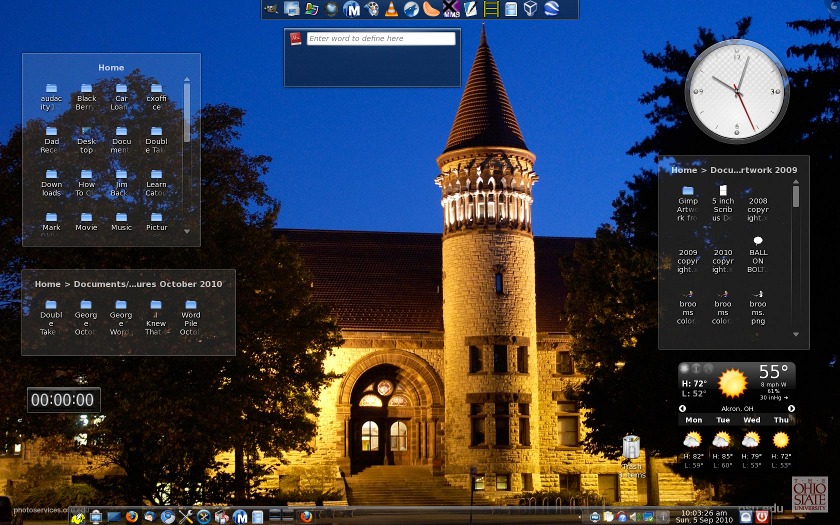
Orton Hall, The Ohio State University

Orton Hall, The Ohio State University

The fun thing about running multiple desktops is customizing each to look unique and different from all the others. This is my favorite part, because I really enjoy collecting images from free sources around the web or using my own snapshots.  I’m partial to wallpapers of my Alma mater, the Ohio State University.

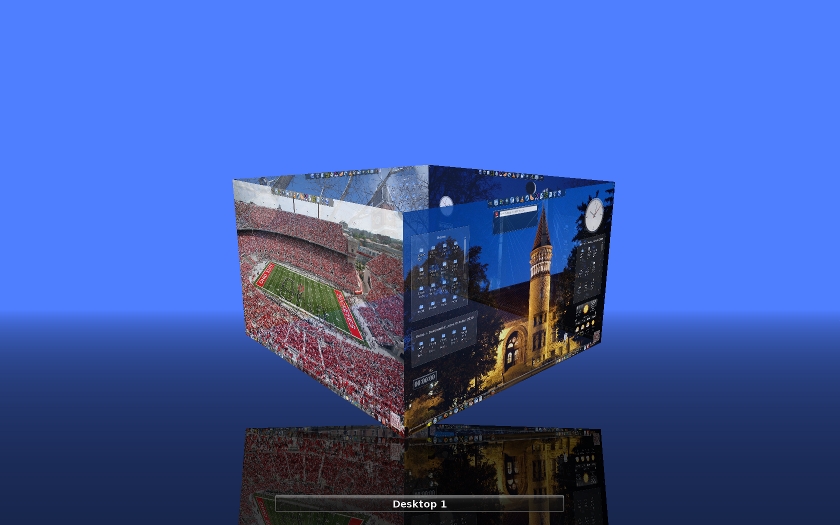
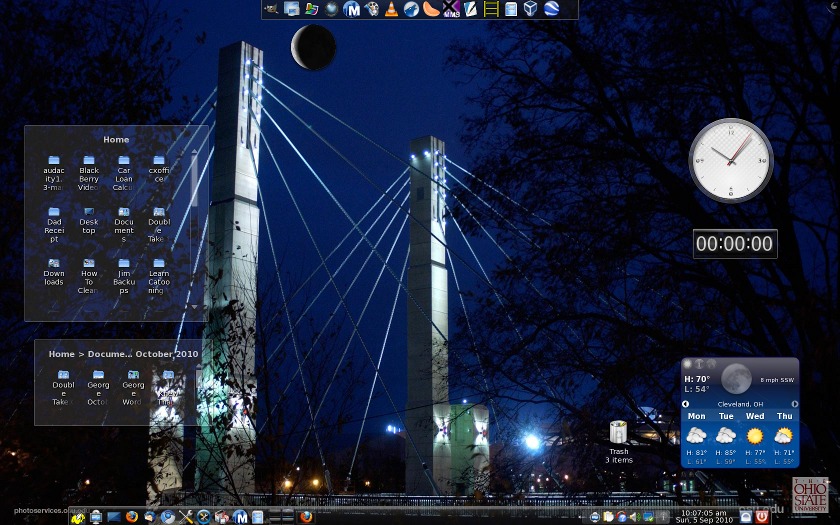
On my current desktop computer, I’m running four desktops.  I have different wallpapers and widgets on each desktop.  Desktop 1 has an image of Orton Hall.  Desktop 2 features the Lane avenue bridge.

Lane avenue bridge, The Ohio Sate University

Lane avenue bridge, The Ohio Sate University

You can see the various wallpapers in the top screen shot showing my desktops in 3D.  I can spin the cube around or select the desktop from the toolbar and it’ll flip into place.  I can have an application running on each desktop and never have to worry about clutter.

Doesn’t this make more sense than the Windows’ approach of being locked into one desktop?  In windows, you’re limited to one desktop, one wallpaper image, and one set of gadgets.

With Linux, I can run multiple desktops, each with its own wallpaper and set of widgets. wheni want to change to lok of my sytem,I simply flip over to a new desktop!

If I come across a new image that catches my fancy and want to use it, I just create a new desktop and drop it in.

Multiple desktop settings

Multiple desktop settings

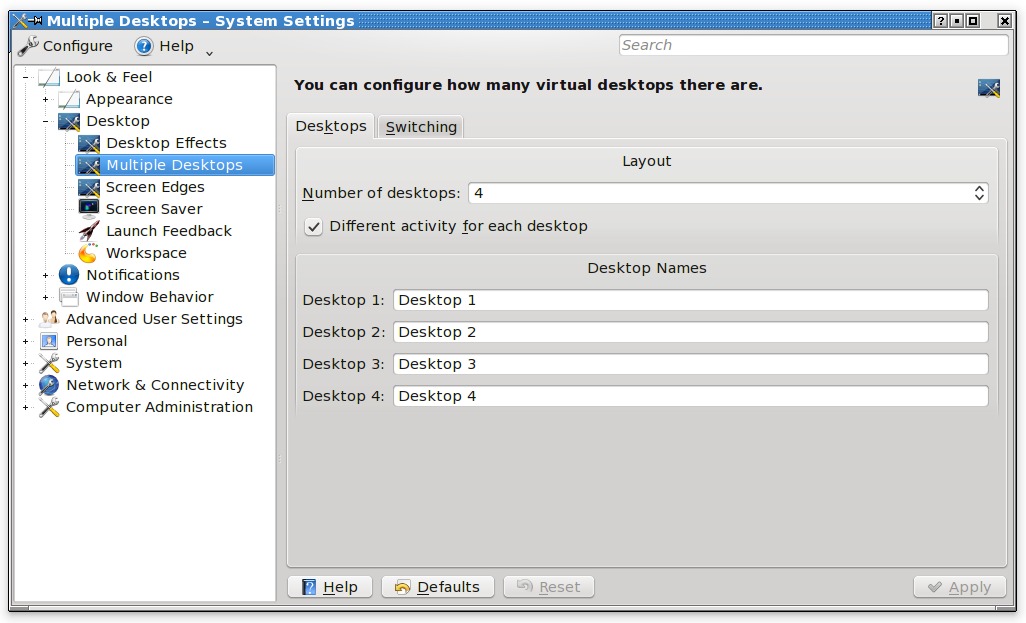
Adding more desktops is a snap. Simply navigate to the multiple desktop control in the “Configure Your Desktop” settings area of Linux. Click the up or down arrows to add desktops.  If you prefer, you can give the desktop a unique label (name). You can also further tweak the way desktops change by selecting the Switching tab.

Give Linux a try! You’ll have a system that you can make as unique to your own personality as you wish.  Linux has been shown to be more stable and secure than Windows, so you’ll have piece of mind when you communicate, work, or surf the web.  And given it’s wide variety of tools and customization options, you’ll get more work done because you’ll be more organized.


Share

TuxType typing game

TuxType typing game

I love to blog. I love writing about things that interest me and, hopefully, readers will find informative and entertaining. My big downfall in all this, though, is neglecting the typing skills I learned in high school.

Even though I learned how to type, over the years, I’ve fallen back on the “Hunt and Peck”method of typing. I find myself looking at the keyboard to find the keys. I glance at the screen only occasionally to see where I am am in the sentence or paragraph. And, I find myself having to spellcheck what I just typed. I probably spellcheck and correct my writing more so than most folks who use traditional typing skills.

But, this is going to change over time.

Thanks to Linux, there are many typing tutorials available for me, you,  and kids of all ages. These programs can help hone and improve your typing skill.

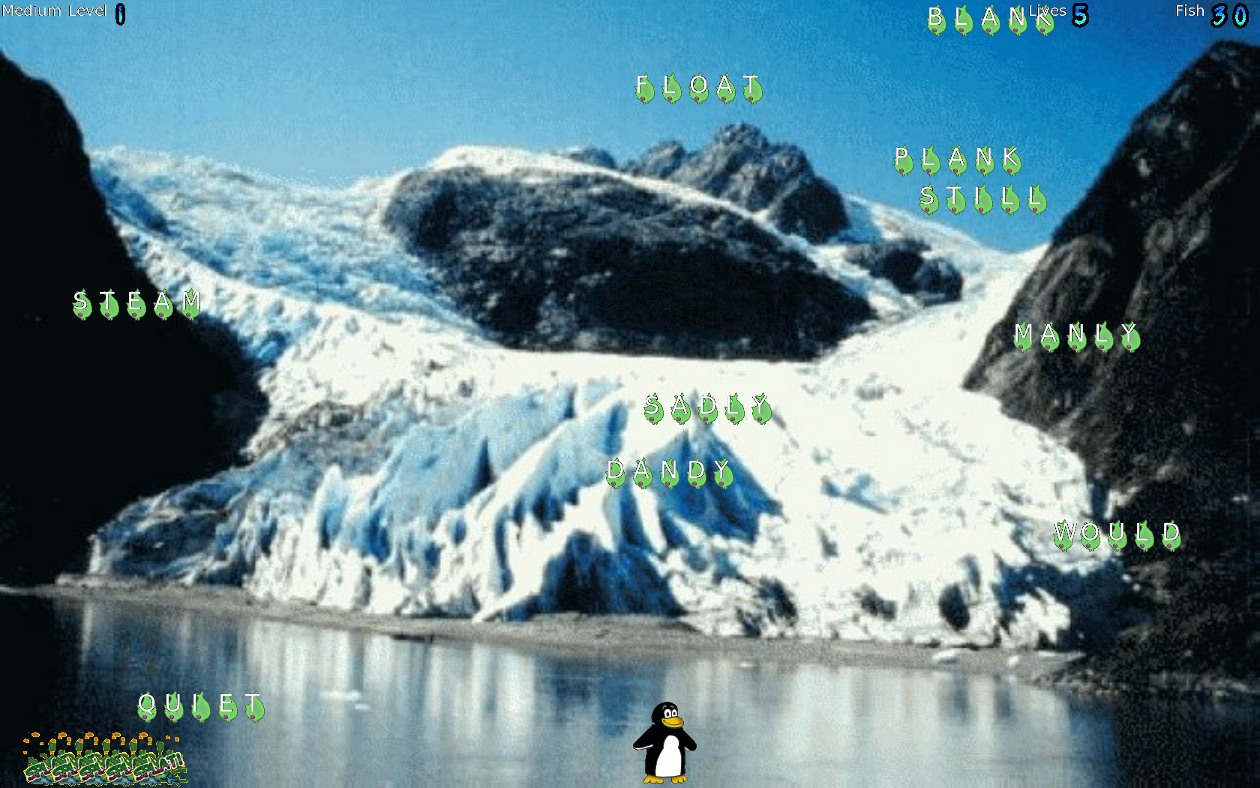
One such program is called TuxTyping. I stumbled on this program while looking for a typing tutorial in my Linux repository. I installed it and gave it a whirl. Don’t be fooled by the cartoony look of this game. It’s challenging! But it’s also fun to play and you’ll be improving your typing skills.

TuxTyping has typing lessons, different challenge levels, game variations, and a very intuitive and easy to use interface. The kids will love it.

I’ve played it and I’m hooked! I’ll be combining this game with other “learn to type” software to improve my typing skills.

The great thing is, all this software is available with Linux.  Simply download this wonderful OS, install to your computer, and you’ll have access to hundreds of software titles. And all are free.

Get Linux.


Share

Like a lot of cartoonists, I’m always on the hunt for the perfect pen. Over the years, I’ve used a lot of different pens. I’ve probably experimented with dozens of pen brands, makes, and styles. I’ve used fat nibs and thin nibs. I’ve purchased expensive and economical pens. I’ve bought pens in a box and one at a time. After all the searching and test driving, I don’t think I’ll ever find the perfect pen. But looking for one sure has been a lot of fun over the years!

Just to be clear, when most cartoonists talk about pens, it sometimes becomes an inclusive word to mean markers, flair pens, porous tipped pens, dip and ink nib pens and everything and anything containing ink. For this blog post, I’ll limit myself to porous tipped pens. I use these more and more to produce my cartoon work due to their fast drying ink. It’s very easy to draw a cartoon and seconds later, slap it down on the a scanner without smudging and smearing the artwork.

I like pens that have nice, dark ink and allow me to produce thin and thick lines when I vary my hand pressure..

Here then, are the top five pens I use to draw cartoons:.

5.) The Classic Paper Mate Flair Pen . This is a porous nib marker and gives a nice quality of line. Like most porous nib pens, the lines fade over time, but if you scan your artwork, you’ll always have a nice crisp copy of your cartoons! The only problem with the flair pen is the nib tends to mash down and lose it’s crispness over time. But this is an advantage of sorts. As the nib mashes down, it starts to produce a wider line. You simply line up the pens next to you, newest (thinnest line) to oldest (widest line). Grab the appropriate pen for whichever line you need. I learned this from Art Sansom, the creator of the comic strip The Born Loser. It’s a method I believe his son Chip still uses to draw his late father’s comic strip.

Flair Pen

Flair Pen

4.) The Pentel Rolling Writer is a great pen for cartooning! It gives the same kinds of great lines as the Flair, but because it’s a roller ball pen, the nib is very hearty and won’t mash down! I use this pen when I need a consistent even line. The ink is nice and dark, too!

Rolling Writer

Rolling Writer

3.) The Sanford Liquid Expresso Pen is a cross between the Flair and the Rolling Writer. Its nib is as hearty as the Rolling Writer’s, but it has the feel flexibility of the Flair. The nib doesn’t appear to wear down. It stays flexible and crisp

Sanford Liquid Expresso

Sanford Liquid Expresso

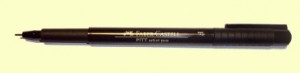
2.) The Faber-Castell PITT Artist Pen. I recently blogged about some supplies I received from the nice folks at Faber-Castell. In the package they sent me, they included the Pitt Graphics Artists pen. This pen is quickly becoming one of my favorites. You can get it in a variety of pen widths. But the bigs selling point is that it uses true India ink. It makes lines that are dark, crisp, and fast drying. And the ink is light fast. Your original art won’t fade over time.

Pitt Artists Pen

Pitt Artists Pen

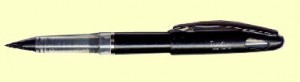
1.) The Tradio Pen. This is absolutely the most amazing pen I’ve ever used! Made by Pentel, it’s everything the first three pens are and more! It has a fountain pen shaped nib that holds up over a long period of time. It gives thin and thick lines and has a great looking ink. It uses replacement ink cartridges. This replacement cartridge also contains the pen nib. So when you run out of ink and replace the cartridge, you also get a new pen nib. The only part you don’t replace is the pen body. This is the same system used by a lot of upscale executive pens like Cross and Parker.  The pen initially is pretty pricey. It costs about $12.00 and comes with an ink cartridge. The ink cartridges are approximately $3.00 each. It’s a terrific pen and I use it all the time!

Tradio Pen

Tradio Pen

Even when using all these terrific pens, I still make mistakes. So I recommend picking up a BIC Wite-Out Pen. It handles just like a pen and covers inking mistakes in a single pass. For major corrections, I’ll scan the artwork and digitally edit it using the Gimp.

Bic Wite Out

Bic Wite Out

All these pens are available at Amazon.com. Do a little online shopping and give them a try. As I said earlier, half the fun in cartooning is trying out different pens. At times, the journey to find a pen is more fun than actually finding the pen.


Share