Now that the holiday shopping season is upon us, we’ll all be bombarded with email spam containg all kinds of deals and offers.  The question is, which are legitimate and which can compromise our computer system?  Sometimes it’s hard to tell.

Google has a helpful little video on how to protct your computer from Malware.  It gives a clear explanation on how a system can be compromised with malware.  And it contains common sense tips on how to avoid malware.   We all tend to overlook the common sense stuff, so it’s a good idea to take a moment and give it a look.

This video is pretty much directed at Windows users.  And Google should know.  Last year, they banned the use of Windows on company systems.

So, if you REALLY want to avoid having your system infected, ask Santa to drop off an early Christmas gift.  Linux.  Linux is immune from Windows viruses, malware, and trojans.  Plus it’s free.

Simply download Linux and install to your current Windows system.  You can wipe Windows completely or, install as a dual boot.

Or you can order a Linux system from linpc.us.

Have a safe web- surfing holiday season.  Get Linux.


Share

turkeyfivebucksThanksgiving is fast approaching.  So, I thought I’d post a Thanksgiving Double Take cartoon to help kick things off.

Click on the Double Take cartoon to enlarge it, then use your browser’s back button to return to this page to check your answers.

And speaking of Thanksgiving, if you’re trying to figure out how to prepare the big feast, give this deep fryer a look.  It’s the Masterbuilt 20010109 Butterball Professional Series Indoor Electric Turkey Fryer.  I‘ve blogged about it in the past.

Answer: (Click, hold down, and move your mouse to the right to reveal the answer)======>  1. Tongue added  2. Ear Shorter  3. Spot on back missing  4. Turkey snood shorter  5. “Five” changed to “ten”  6. Money shorter  7. Mountains moved


Share
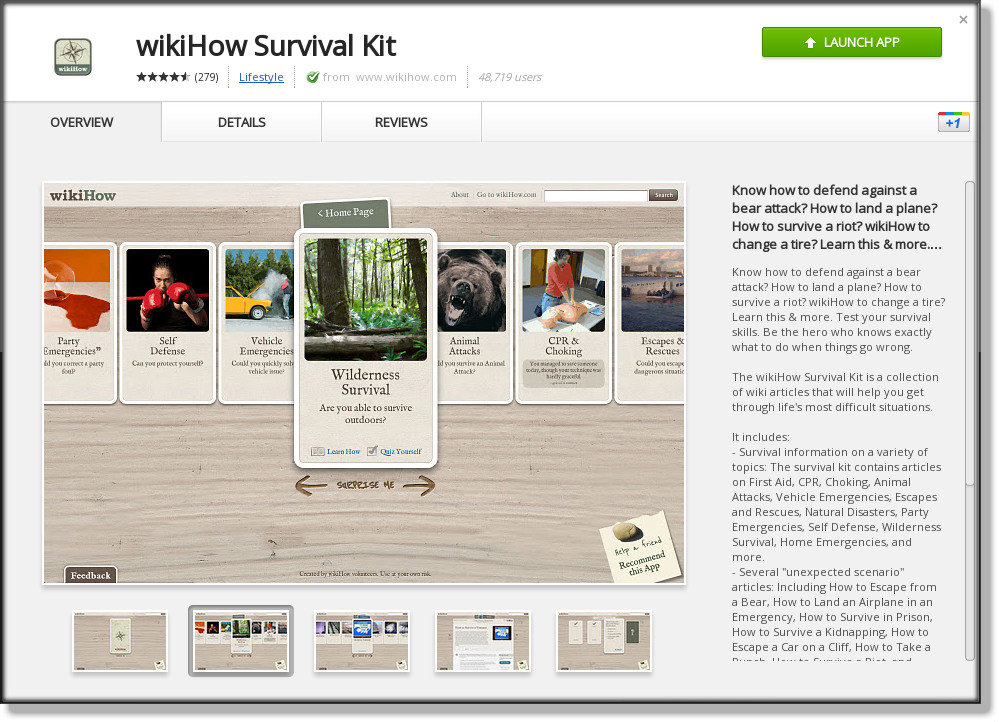
wikihow_iPiccy

wikiHow Survival kit. I edited this image in Chrome's iPiccy graphics editor

If you’ve been reading this blog for the past couple of weeks, you know that I’ve been test driving and using the Google Chrome browser.

I like Google Chrome and it’s quickly becoming my preferred browser. I also like the sync feature.  When I move from my desktop system to my notebook system, my files and apps are all there in the cloud. Well, to the extent that I allow it. You can modify these settings and tailor them to your own personal needs.

I’m still a little fuzzy about allowing my banking and financial data to be recorded and save up on the cloud.  Even if it is secure, I prefer to do my books locally.  (BTW, if you’re looking ofr a great financial app, give KMyMoney a look.  It does everyitng Quicken does, plus it’s free!)

Anhow, in looking through some of the Chrome apps avaible, I stumbled upon a really fun and informative offering. it’s called the wikiHow Survival Kit.

wikiHow Survival Kit is fun, entertaining, and informative.

You’ll learn some pretty useful stuff like how to make a disaster plan for your family and how to make a pool area safe for kids and pets.  You’ll  also pick up some not so obvious information like how to open a door with a credit card or how to escape from a bear.

And since Thanksgiving is right around the corner, wikHow will even instruct you in how to prepare a turkey.  From roasting to deep frying, wikiHow has all the information!.

Simply download the Chrome browser from Google. Once installed, then launch the Chrome store and search for “wikiHow.”  It insalls in one click.

Linux users can install the open source  version of Chrome called Chromium.  This is the version I use. It’s the same as Chrome, except that it’s open to developers and other contributors.


Share

I was in my studio Sunday morning and at the computer.

I was taking care of few things regarding my cartoon features. I was also checking in at the PCLinuxOS forums with a couple of questions.  Ya know, just busy Sunday cartoon/computer stuff.

The morning became afternoon and I was engrossed typing away at the keyboard.

Anyhow, out of the corner of my eye, I noticed a bunch of leaves falling. Well, they looked like leaves at first.

When I looked up, it turns out that those leaves were actually birds were landing on the hill overlooking the lake.   Hundreds of birds. I grabbed my cell phone and grabbed what footage I could.

When I opened the door, I figured they’d take off.  Well, they took flight just from seeing me stand up to get my cell phone.  I guess they were looking through the wndow at me just as much as I was looking at them.  You can see many of these birds just sitting in the trees (That’s my dad on the audio. He noticed all the birds sitting in the trees).

I happened to see this same heavy migration yesterday from a neighbor’s yard looking out towad the fields and woods.  Thouands of birds flying at tree-top level chirping loudly as they traveled south.

So, I was a bit surprised to see them outside the window.

The neat thing about having a studio way out in the sticks is sometimes you see some really amazing stuff from nature.  It’s my own Discovery Channel right out my window!


Share
iPiccy edit to my Kindle Photo

iPiccy edit to my Kindle Photo

I’ve been continuing my adventure through the Google Chrome/Chromium browser.  As a cartoonist, I use (and require) software that allows me to digitally alter/edit my cartoon creations.  I also need to do the same for photos for this blog.

Since using Google Chromium, I’ve been installing and test driving many different apps.  Chrome/chromium has several photo editing apps that work quite well.

iPiccy is one that does some basic digital editing quickly and cleanly.  It has a nice assortment of tools and filters and most editing functions work with just a click or two of the mouse.

Simply open the app (it’s free, no need to register), upload a photo, and edit using the smart tools.  Once you’ve completed editing, you can save back to your computer’s local folder.  You can also upload it to the web to share with friends.

The photo at left is of my Kindle. I applied a pencil  drawing filter in a single click and allowed iPiccy to share it.  You can view the shared photo here.

kindle_cover

To show you how neat the progam and the filter is, here’s the orignal photo.

iPiccy is fast, powerful, and fun to use.  If you need a photo editing application, the fastest way to get one is the get the Chrome bower.  Then, install iPiccy from the Chrome Web Store.

In less time than you can imagine, you’ll be edting photos online for your blog, school papers, and presentations.


Share